
⚙️ Preferences & Troubleshooting
Customize your player according to your hardware environment and resolve common playback issues.
🎛️ Settings Navigation
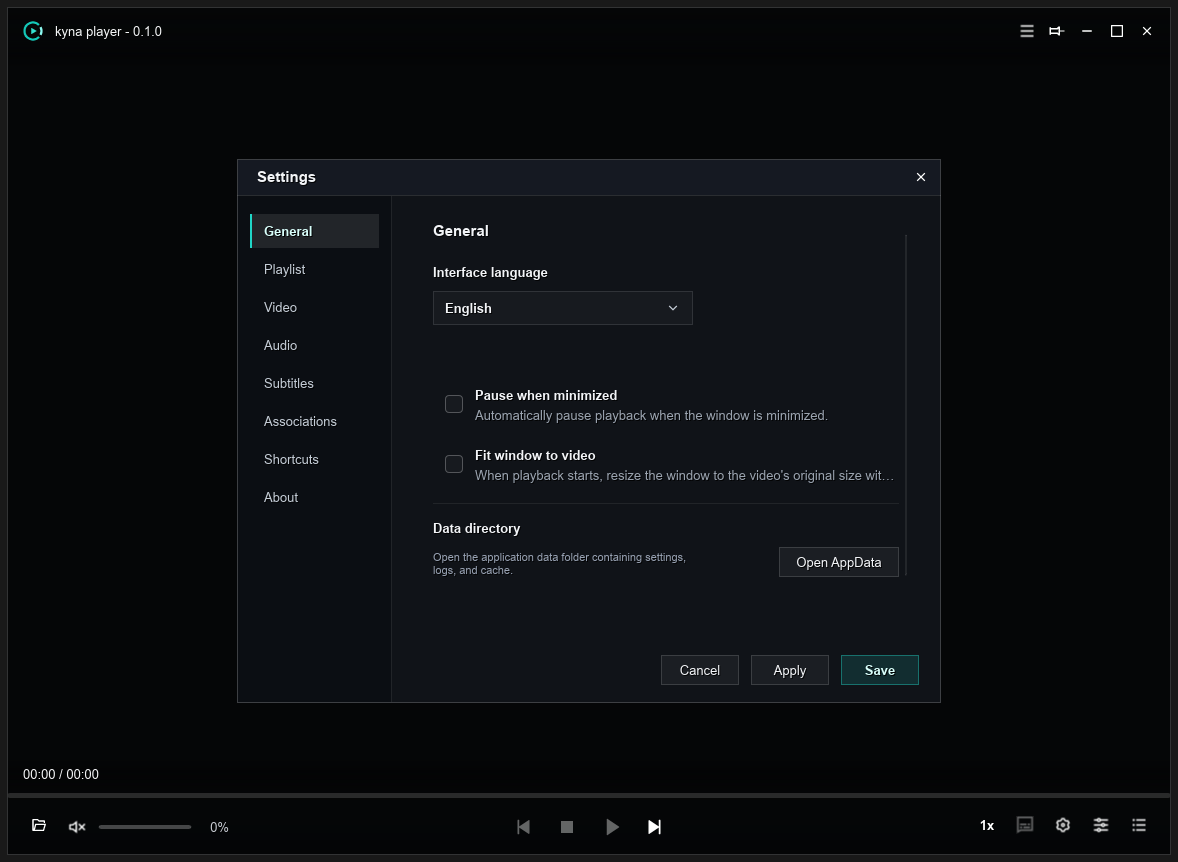
- General: Multi-language switching (Simplified Chinese, English, Japanese, Korean), instance limits, and AppData directory shortcut.
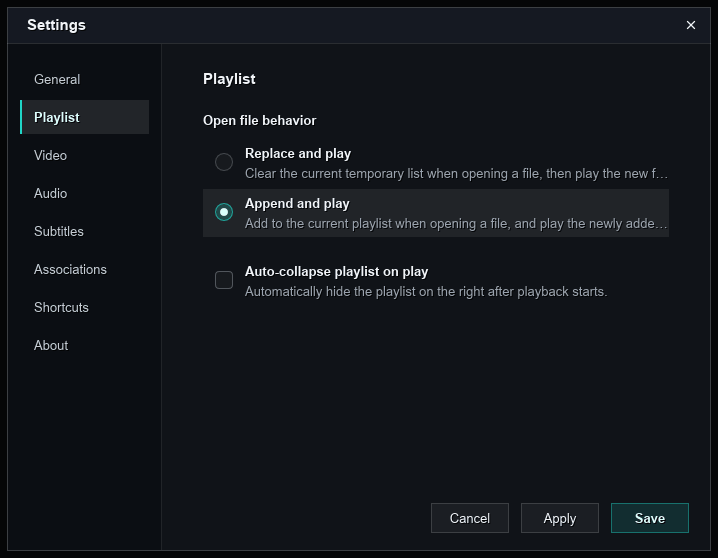
- Playback: Default open behavior (Replace / Append), auto-play next item, and history memory.
- Hotkeys: View and customize keyboard shortcut bindings.
- File Associations: Register system-level default video extensions with the
Play with Kyna Playercontext menu.
🛠️ Common Troubleshooting
1. 4K/8K Playback Stuttering or Frame Drops
- GPU Scheduling: On laptops with dual GPUs, assign Kyna Player to “High Performance Dedicated GPU” in Windows Settings.
- Hardware Acceleration: Verify that Direct3D 11 acceleration is enabled.
- Filter Load: If Anime4K is active, reduce the scaling preset based on GPU capacity.
2. Subtitle Character Encoding Errors
- Ensure subtitle files are saved in
UTF-8format. Re-save files as UTF-8 in a text editor if needed.
💬 Feedback & Logs
- Retrieve Logs: Click “Open AppData Directory” in Settings and look into the
logs/folder forkyna_player.log. - Submit Issue: Visit GitHub Issues to submit your bug report.